All updates
21 Aug 2026Use touch screen drawing to easily customize an optimized route
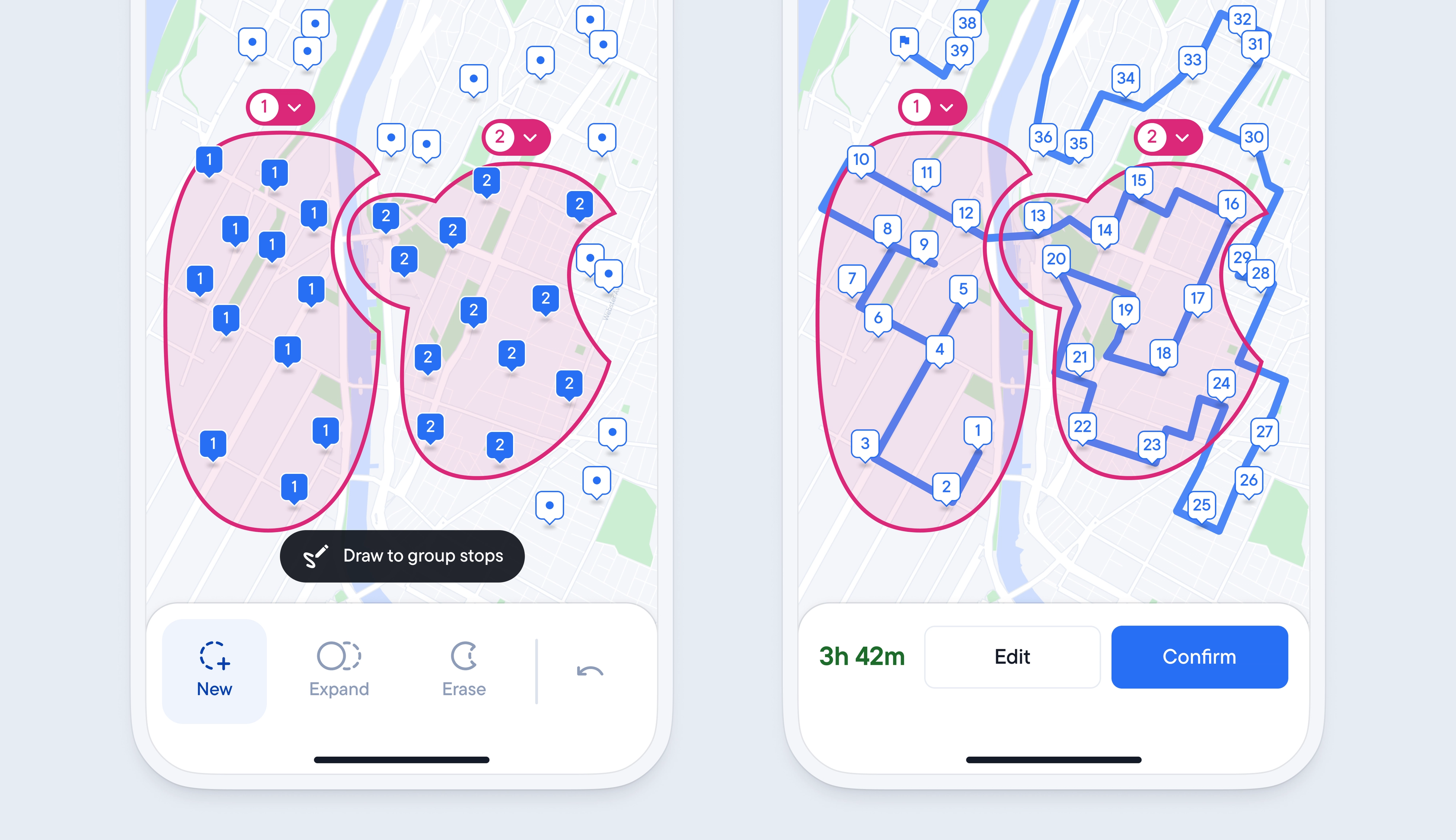
Spoke automatically creates an optimized route and plans the most efficient journey for you, but every driver may have specific reasons to want to make certain stops in a particular order.
The latest update to the refine route feature gives you more control over the order of stops on your route. It makes it easier than ever to make stop selections simply by drawing around the stops you want to attempt at a certain point in your route on your phone’s touch screen.
Once a line has been drawn around a group of stops, you can easily expand, erase, or undo that selection with a few taps. The order of grouped stops can also be rearranged, meaning you do not need to start the customization process from scratch if you change your mind.
You also have more control over any ungrouped stops, as you can now decide to let spoke add these remaining stops, between groups where it is most efficient, or attempt them all at the end of the route once all grouped stops have been completed.
- Add your stops and optimize your route
- Tap > Refine and then > Manually order route
- Use your finger to circle around the group of stops you wish to arrive at first
- Repeat this process for every group of stops
- Once you have finished tap > Reoptimize route
- Decide how to include any ungrouped stops, choose to:- Fit ungrouped stops anywhere in your route- Add all ungrouped stops to come last on your route
- Tap > Confirm route to start your route
