Choose to move or copy stops between routes
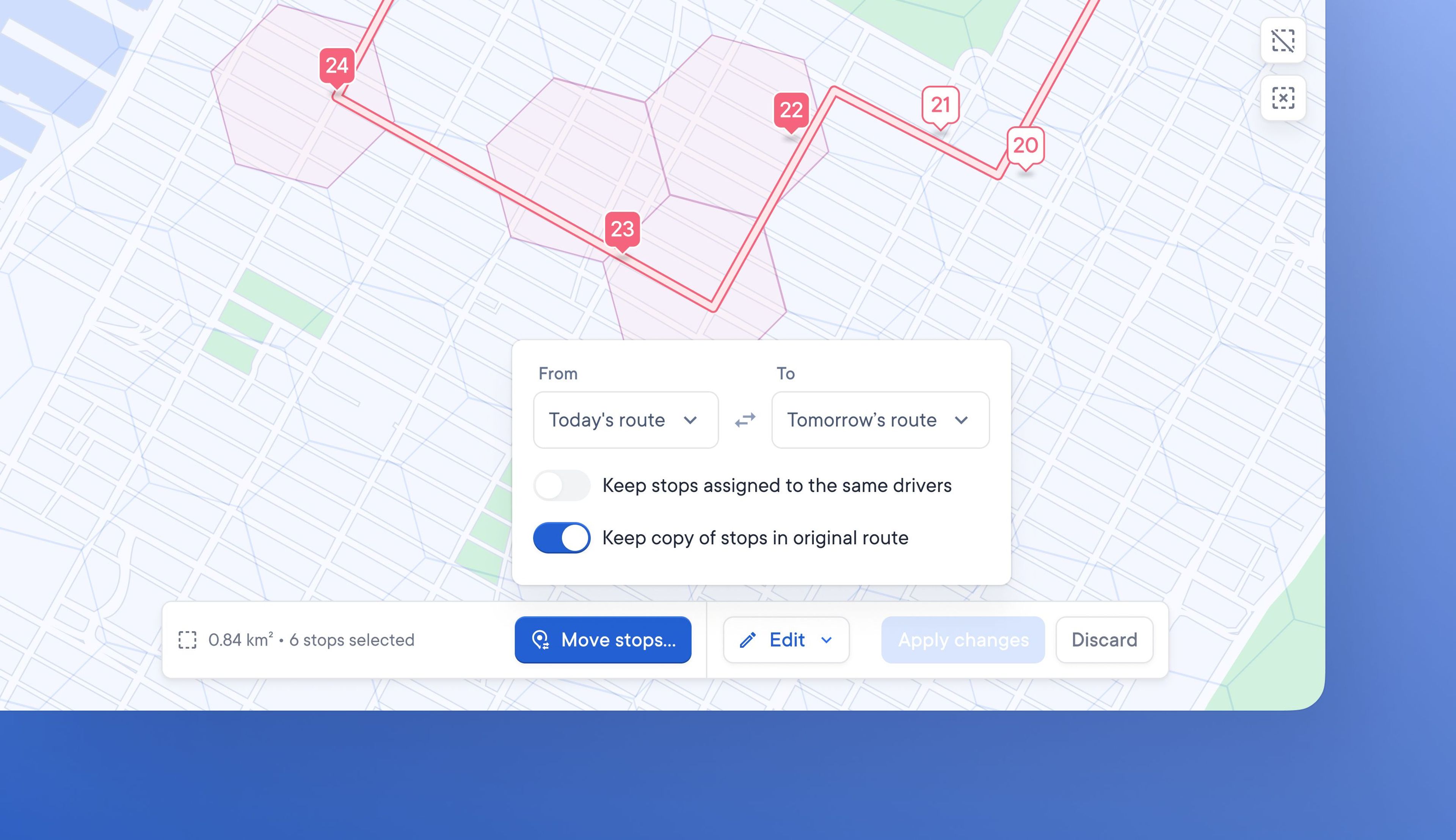
Previously, dispatchers could only copy stops from one route to another. A copied stop could be added to an alternative route and would also remain on the original route unless manually deleted.
Dispatchers can now move stops between routes. When a stop is moved from one route to another, it is automatically deleted from its original route.
Depending on their needs, Dispatchers may want to keep a copy of stops on their original route and they can do this by toggling the relevant settings on or off.
How to move stops
- When creating/managing a route click > Move stops
- Turn the setting on/off if you want to keep stops assigned to the same drivers
- Turn the setting on/off if you want to keep a copy of the stops in the original route
- Select the route you want to move stops from
- Select an existing route or create a new route to move stops to
- Click > Move Stops
- Selected stops have now been moved to the chosen route