More efficiently reallocate existing stops between routes
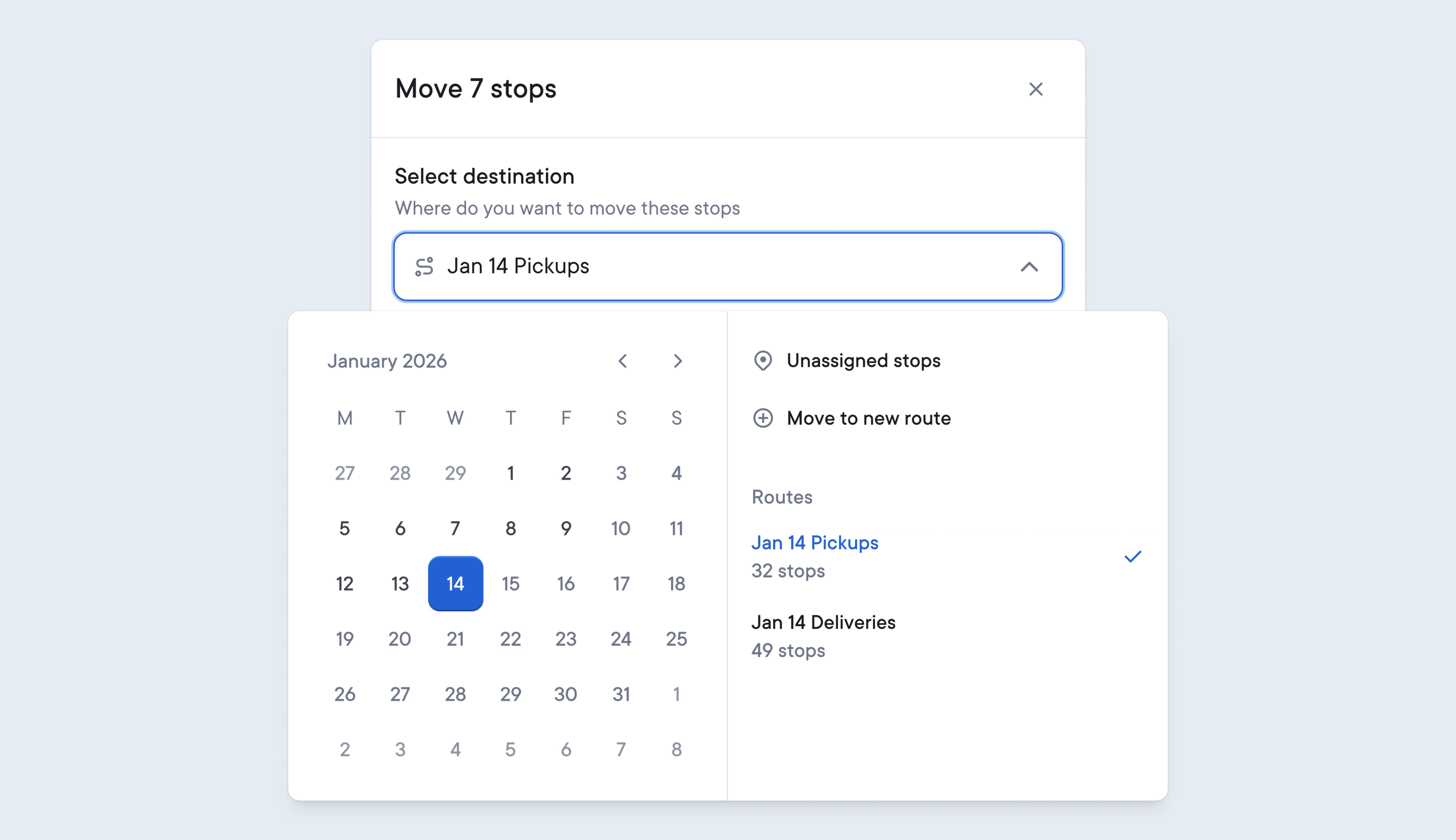
Previously, copying or moving existing stops between routes could be a complex process.
We’ve streamlined this workflow to make copying or moving existing stops between routes even easier, which saves Dispatchers time when they need to quickly and efficiently reallocate stops between various routes.
Moving stops can now be carried out in a dedicated pop-up, keeping the Dispatcher in the context of the route they are editing. Finding the route you want to move stops to is also simpler with the calendar selector and filtering options, making it easy to find individual routes by name or date.
The ability to select multiple stops has also been streamlined to look and work more efficiently, and a new confirmation message has been introduced to reduce accidental errors by requesting verification before any changes are discarded.
- When creating a new route, click Add existing stops
- This will take you to the Stops list
- Select the stops from the list that you want to add to the route
- Click Add stops
Your stops will now be added and visible on your route.
- On a route, click on the map view
- Top right on the map click the dotted square Select area icon
A hexagonal grid pattern will now be overlaid on the map view.
- Click to select the hexagon sections which contain the stop(s) you want to move
- Using the toolbar at the top of the stops list, click Move
- This will open a Move Stops pop-up, where you can move stops to any route or back to the Stops list