All updates
10 Nov 202510 Nov 2025Driver app
Scan barcodes when loading vehicles to prevent package misidentification
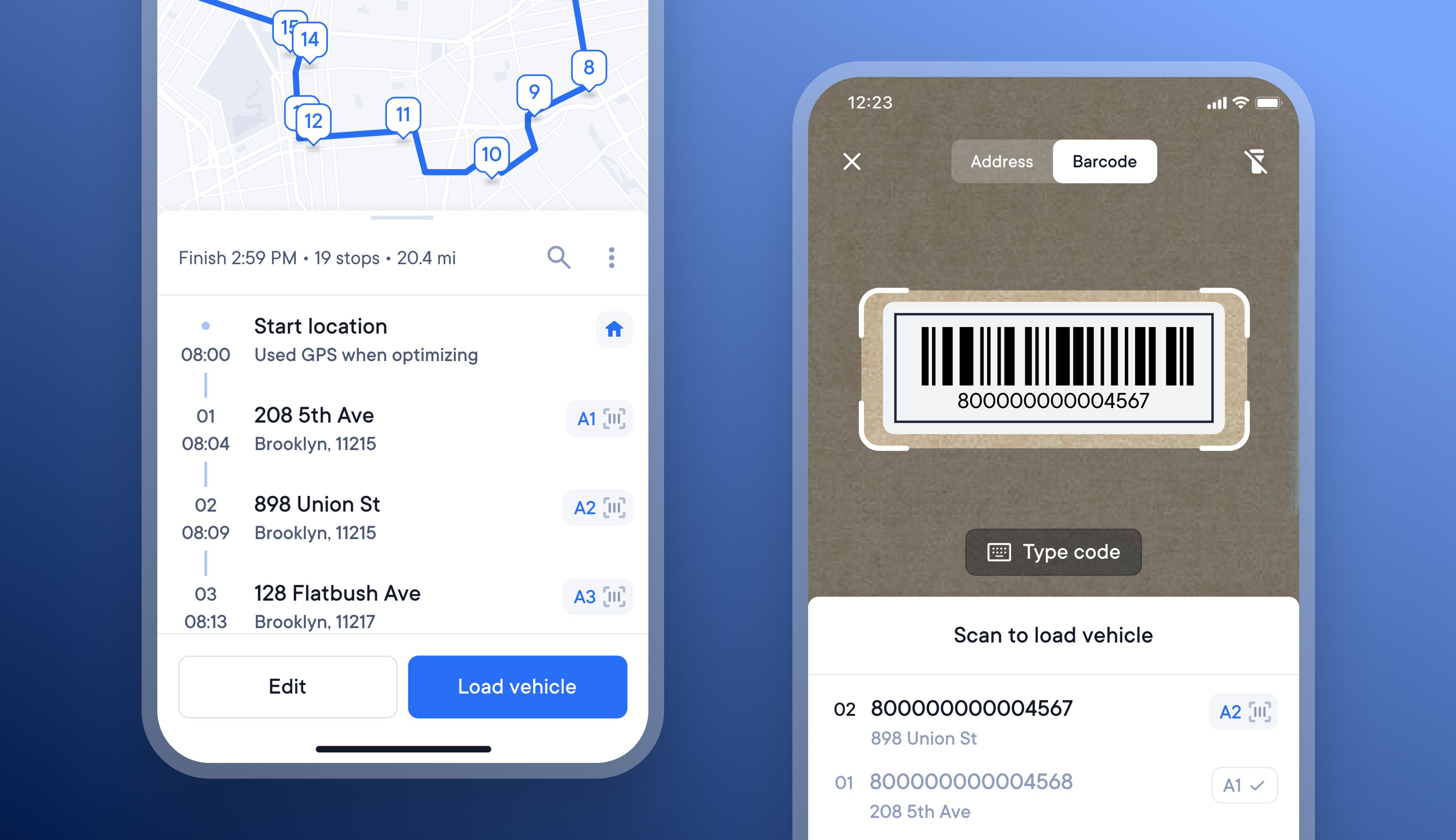
Previously, drivers could scan the barcode on a package to add that stop to their route, and scan the barcode again at the recipient’s address to confirm delivery.
The latest update to barcode scanning also lets drivers scan the package barcode as they load their vehicle, to confirm they are loading the correct item.
This latest update also lays the foundations so that soon scanning a package’s barcode will be able to provide proof of custody details from the point that it is loaded onto a vehicle until it is delivered to the recipient.
- On the dispatcher dashboard, go to Settings > Operations > Driver settings > Barcode scanning
- Tick the box to allow barcode scanning for the driver before loading the vehicle
- Inform drivers that this barcode scanning option is now turned on
- On the driver app, once a route has been optimized, drivers can tap Load vehicle
- The barcode scanning viewfinder will appear
- Drivers can scan the barcodes on the packages as they load them into their vehicles
- Drivers can scan the barcode on the package again at the recipient’s address to mark it as delivered or failed
Get Started