Product updates
What’s new in Spoke Dispatch
Feature updates and improvements to make last mile delivery more dynamic
Feature updates and improvements to make last mile delivery more dynamic
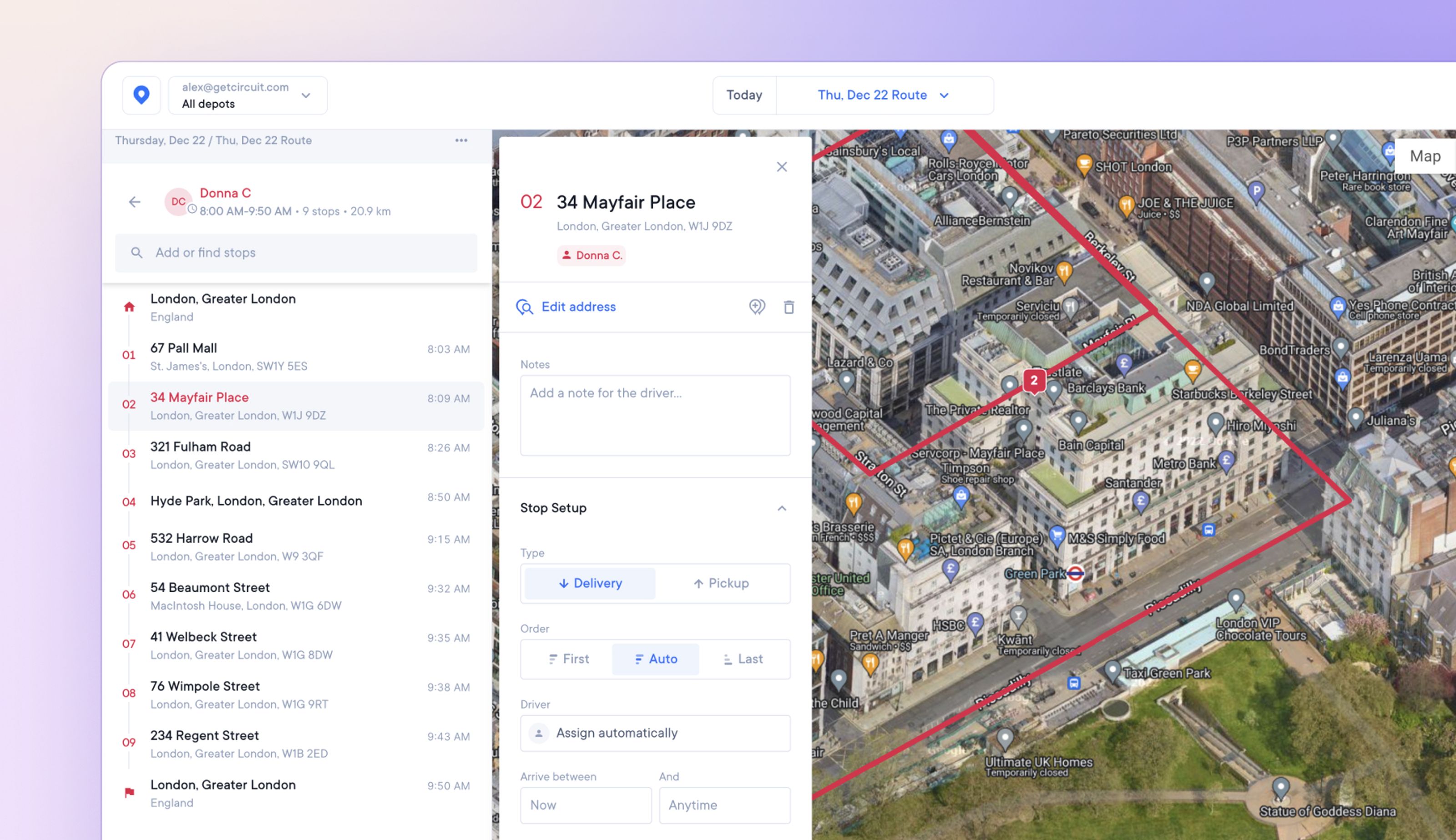
In addition to the default map view, dispatchers and admins can now select satellite view for a photographic bird’s eye view of routes.
This provides detailed satellite imagery of the landscape, which can help when trying to pinpoint hard-to-find or incorrectly mapped stops.
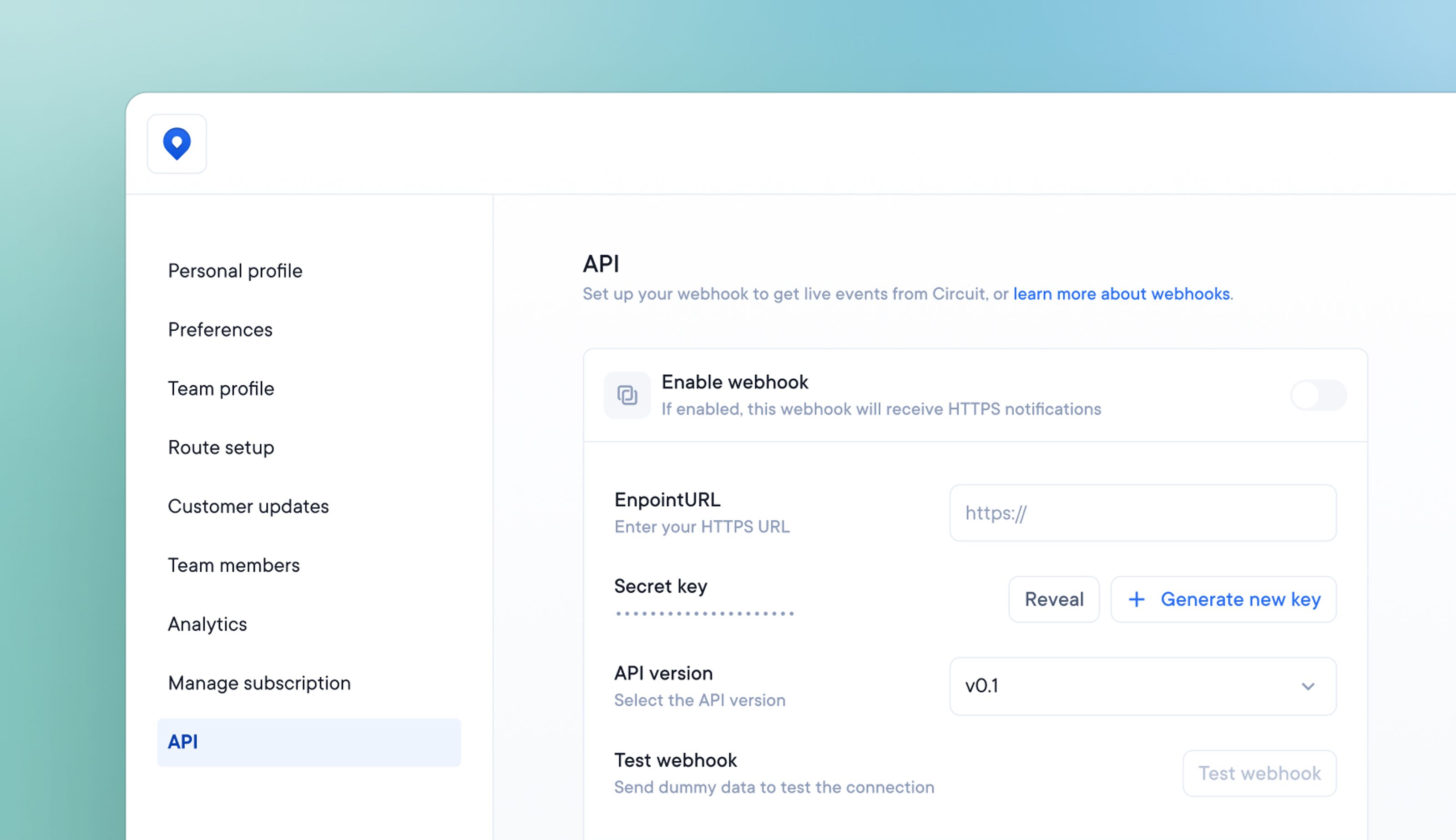
Spoke Dispatch users can now access and benefit from Spoke’s Webhook API V0.1b
The API enables two different software programs to communicate and provides access to useful event-based data.
The API publishes data relating to three key events:
Go to Settings > API to read the complete technical documentation and best practices.
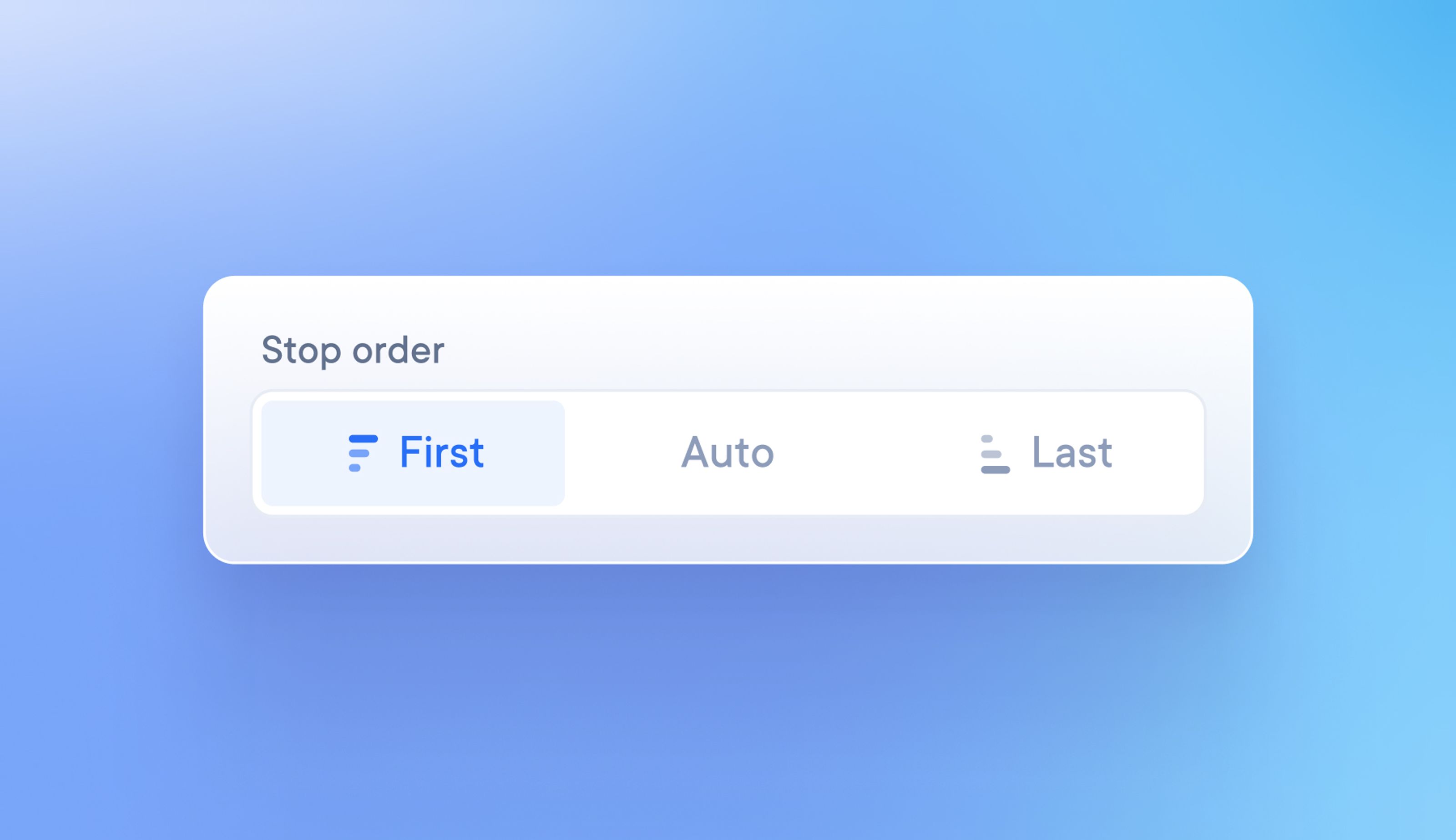
On a route, dispatchers can select:
This allows drivers to complete priority deliveries at the beginning of their route and leave less urgent deliveries until the end.
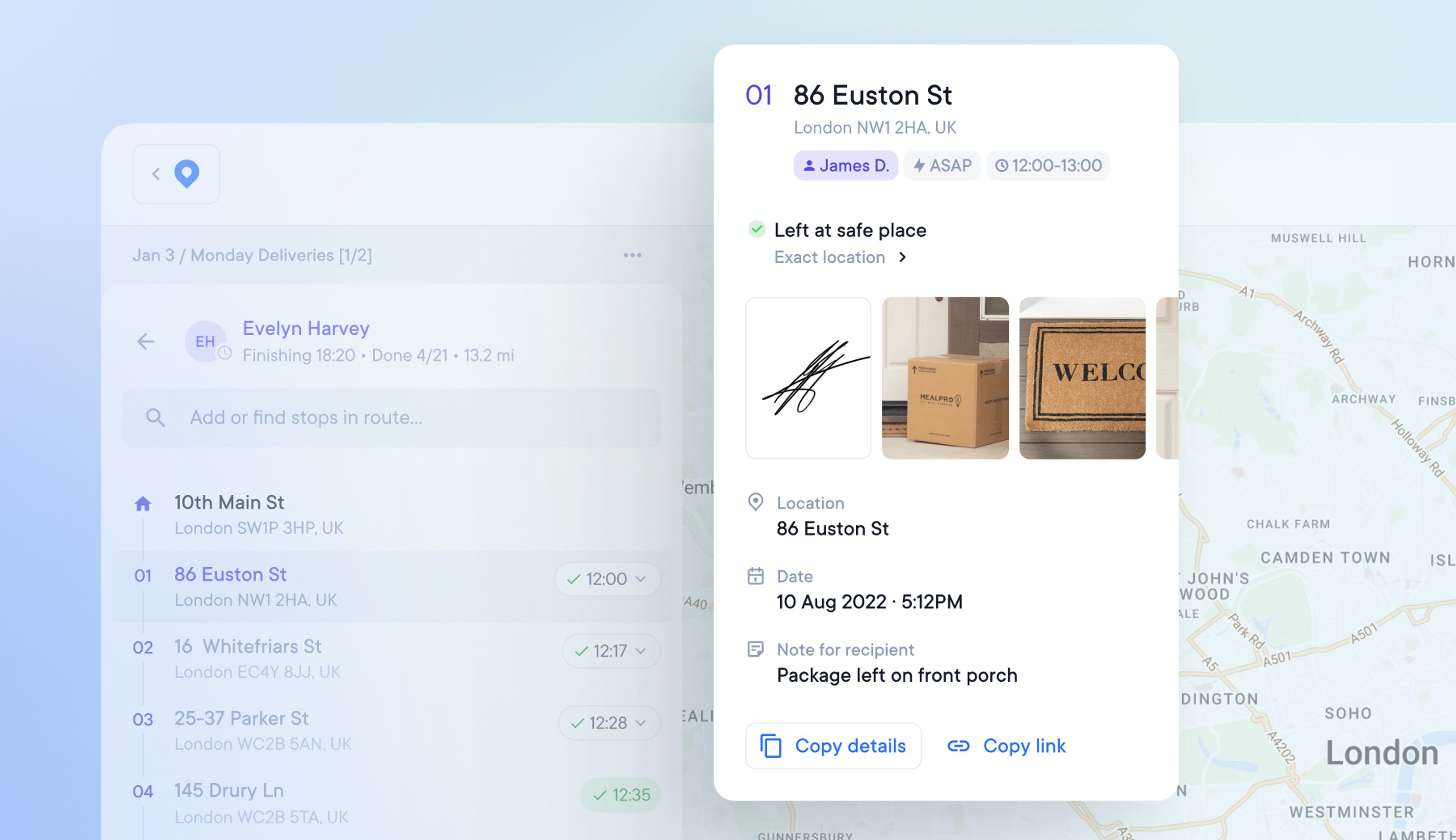
When there is a problem with a delivery, dispatchers and admins often have to find proof of delivery and forward that to the concerned client or customer.
You can now easily find and copy all the POD information from a specific stop in one click.
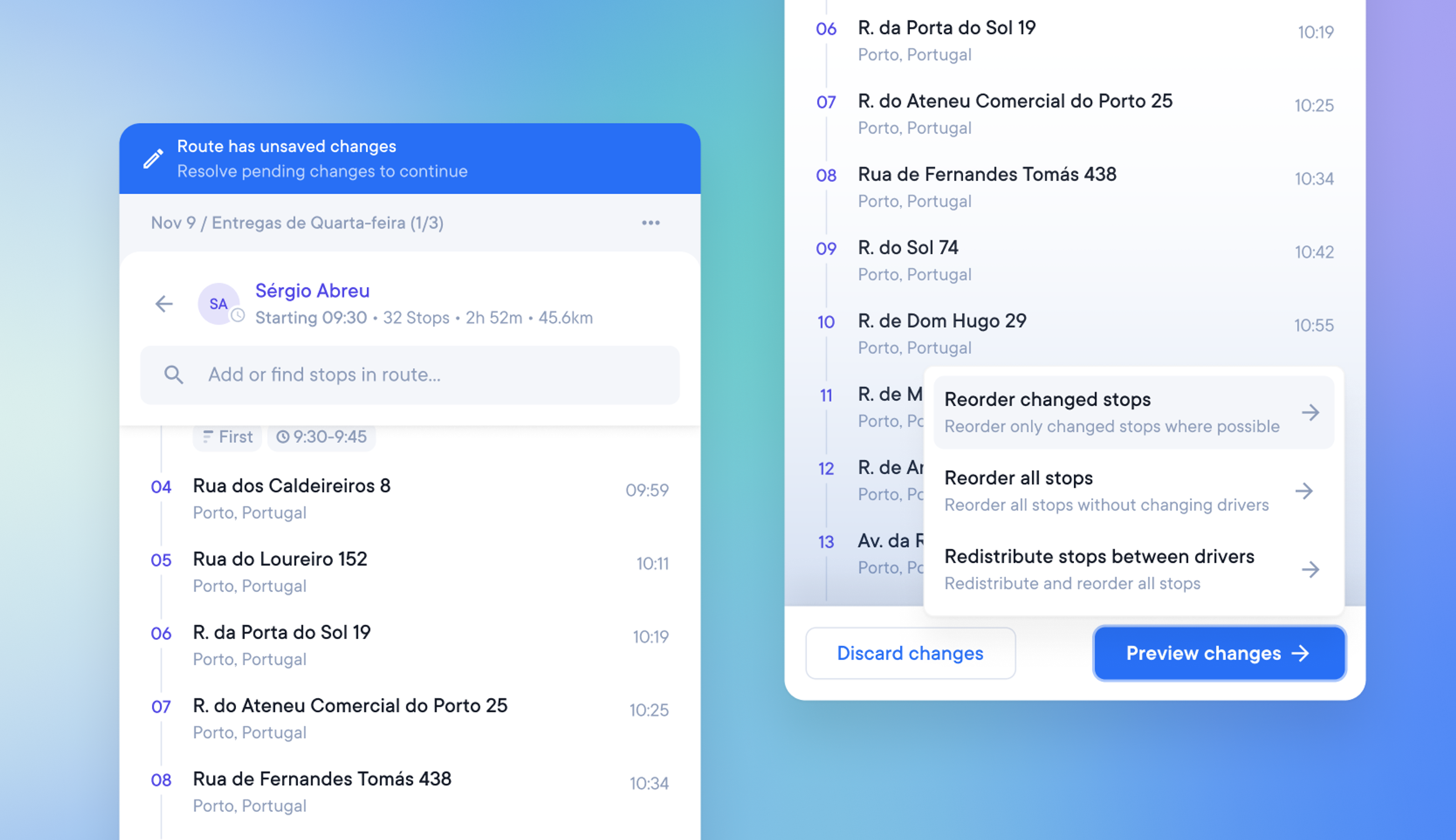
Dispatchers who need to make last-minute changes to optimized routes can now easily make and roll back changes.
To minimize disruption to the driver, it is also possible to choose how those changes will impact the existing route order.
This is the first of three components that together will allow dispatchers and admins to edit live routes in the near future.
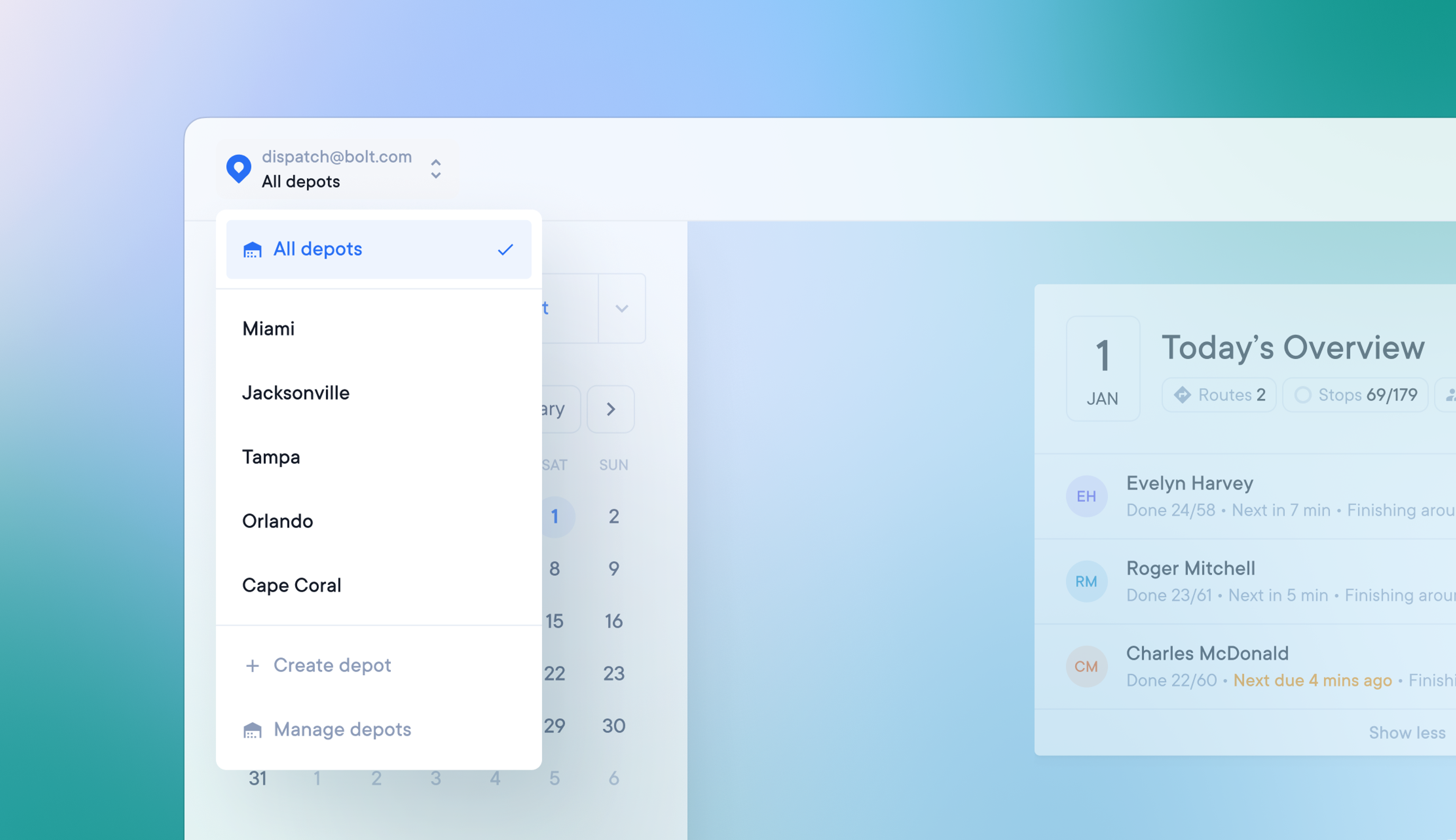
Companies with more than one depot location can now create multiple depots.
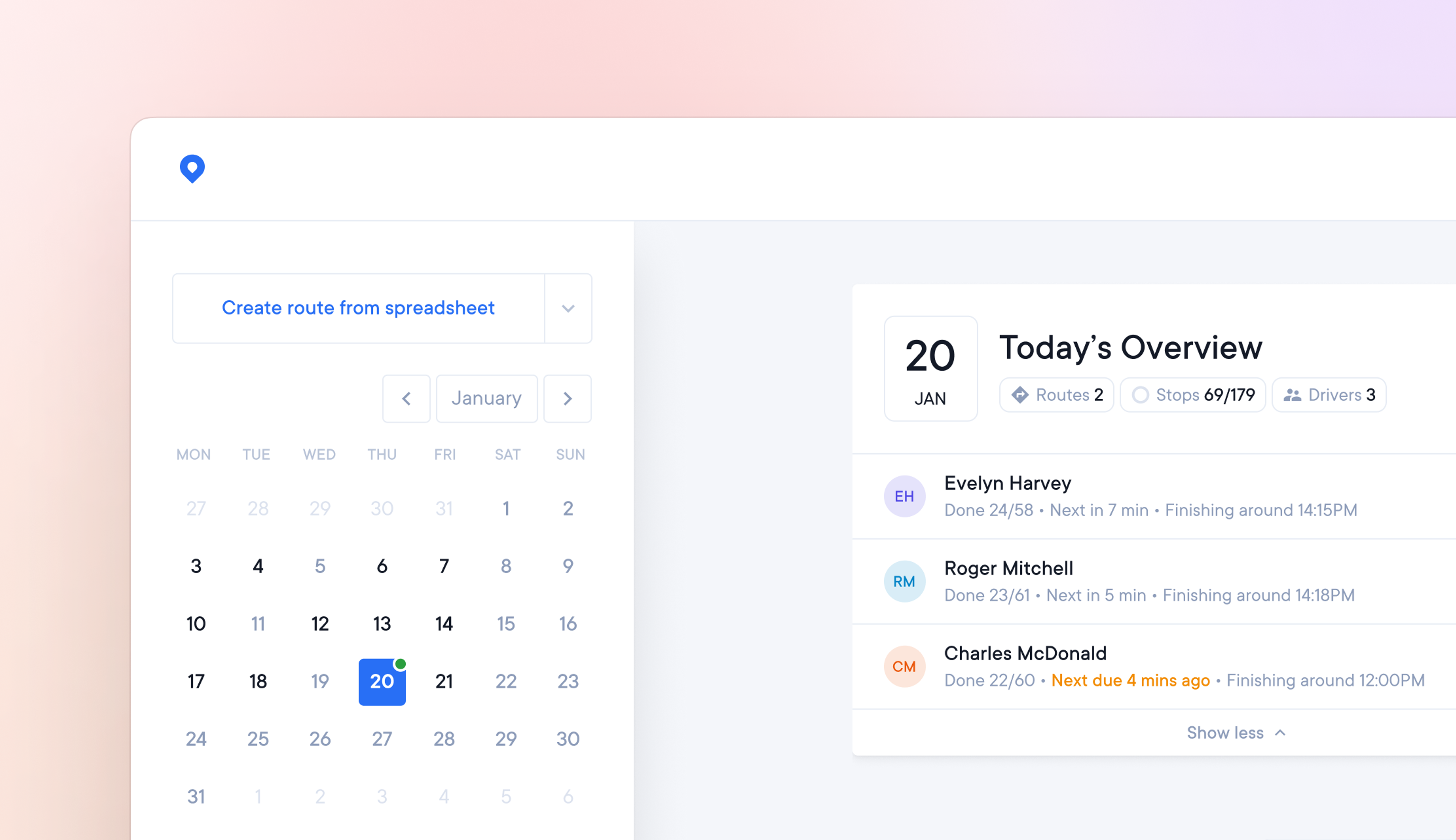
Searching for individual drivers and routes on specific days can be time-consuming if you plan routes daily or have a large driver team.
Now you can clearly see which days of the month have routes on them, and which days have active drivers.
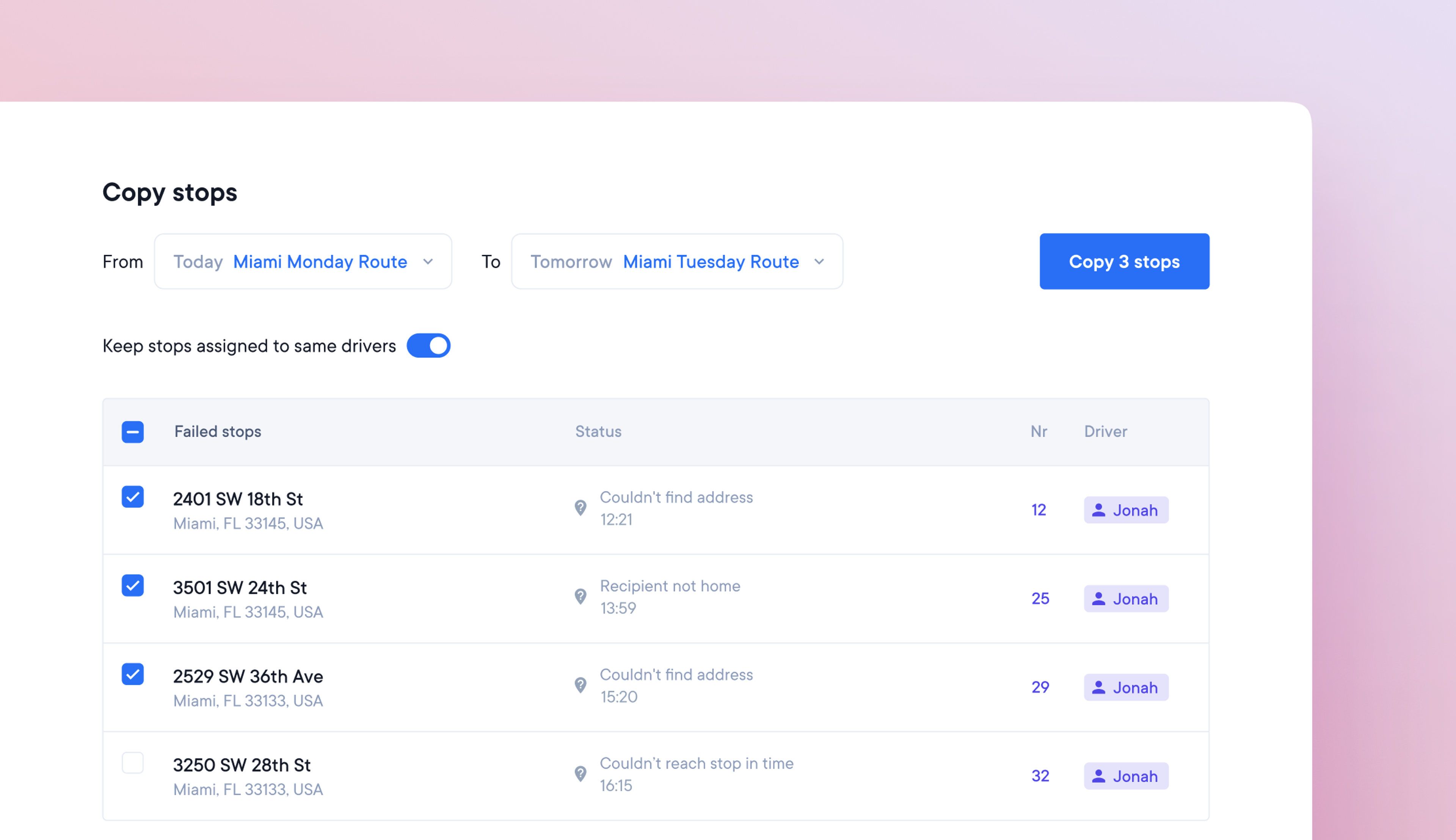
Drivers often finish their day with unassigned, unattempted, or failed stops. To make sure these stops are completed on the next try, dispatchers need to reassign them to new routes.
Manually completing this process can be time-consuming and confusing. We’ve developed our Copy Stops feature to quickly handle this process.
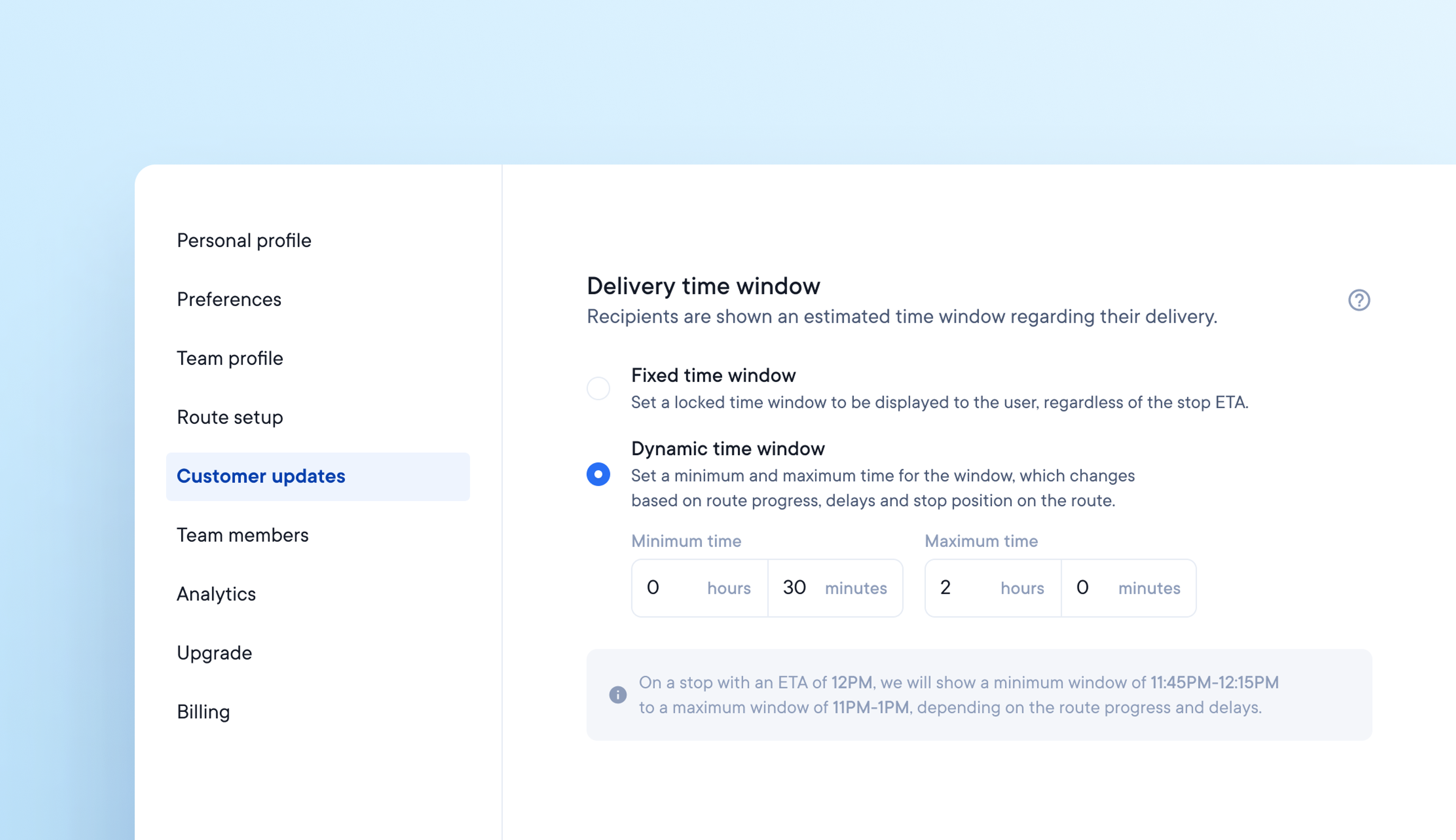
The most important information for a customer is when a package is due to be delivered. Not being able to set or communicate timely delivery windows accurately can cause customer service issues.
Our new Dynamic and Fixed delivery window options allow you to customize delivery windows and easily communicate delivery ETAs to your customers.
Set a fixed time window for customer updates, regardless of the stop ETA.
For example, set a fixed time window of 9 am-5 pm for all deliveries, and this will not change regardless of the route progress.
Set a minimum and maximum dynamic time window for customer updates which changes in real-time depending on the progress of the route.
For example, set a dynamic time window with a minimum value of 30 minutes and a maximum value of 2 hours for a stop with an ETA of noon.
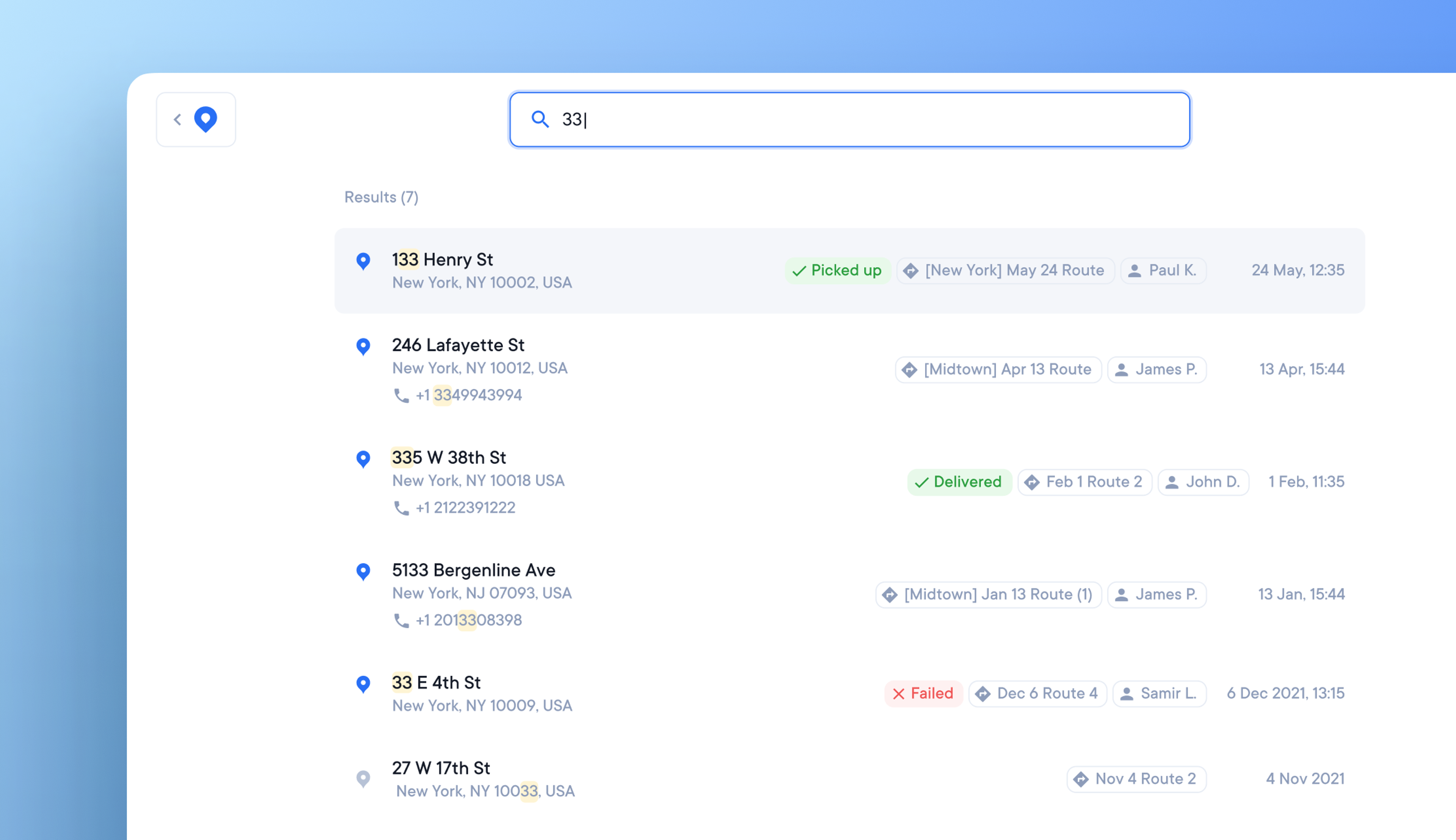
Previously, you could only search for stops individually, this made tracking down and resolving customer service issues potentially tricky and time consuming.
We’ve now released our new search function, available across all plan types on the web app. This allows you to search your entire driver team and all stops quickly and easily using any information associated with a stop, for example:
Click the search icon in the top right hand corner of the main dashboard, or press S on your keyboard to open the search function.
Type in your search query. Where possible we suggest using the order number as this is unique to each stop, and as such will provide you with more targeted search results.
Search results are displayed with a relevancy bias, beginning with the most likely stops to match your search query.
Click on a stop from the search results and you will be taken to the stop details where you can find information such as delivery status, and attempted location.
Your dynamic time window will show customers a minimum delivery time of 11.30 am-12.30 pm, potentially increasing to a maximum delivery time of 10 am - 2 pm, depending on route progress.
Spoke’s customer notifications provide a tracking link that displays real-time delivery windows so customers can always access the most accurate ETA.