Product updates
What’s new in Spoke Dispatch
Feature updates and improvements to make last mile delivery more dynamic
Feature updates and improvements to make last mile delivery more dynamic
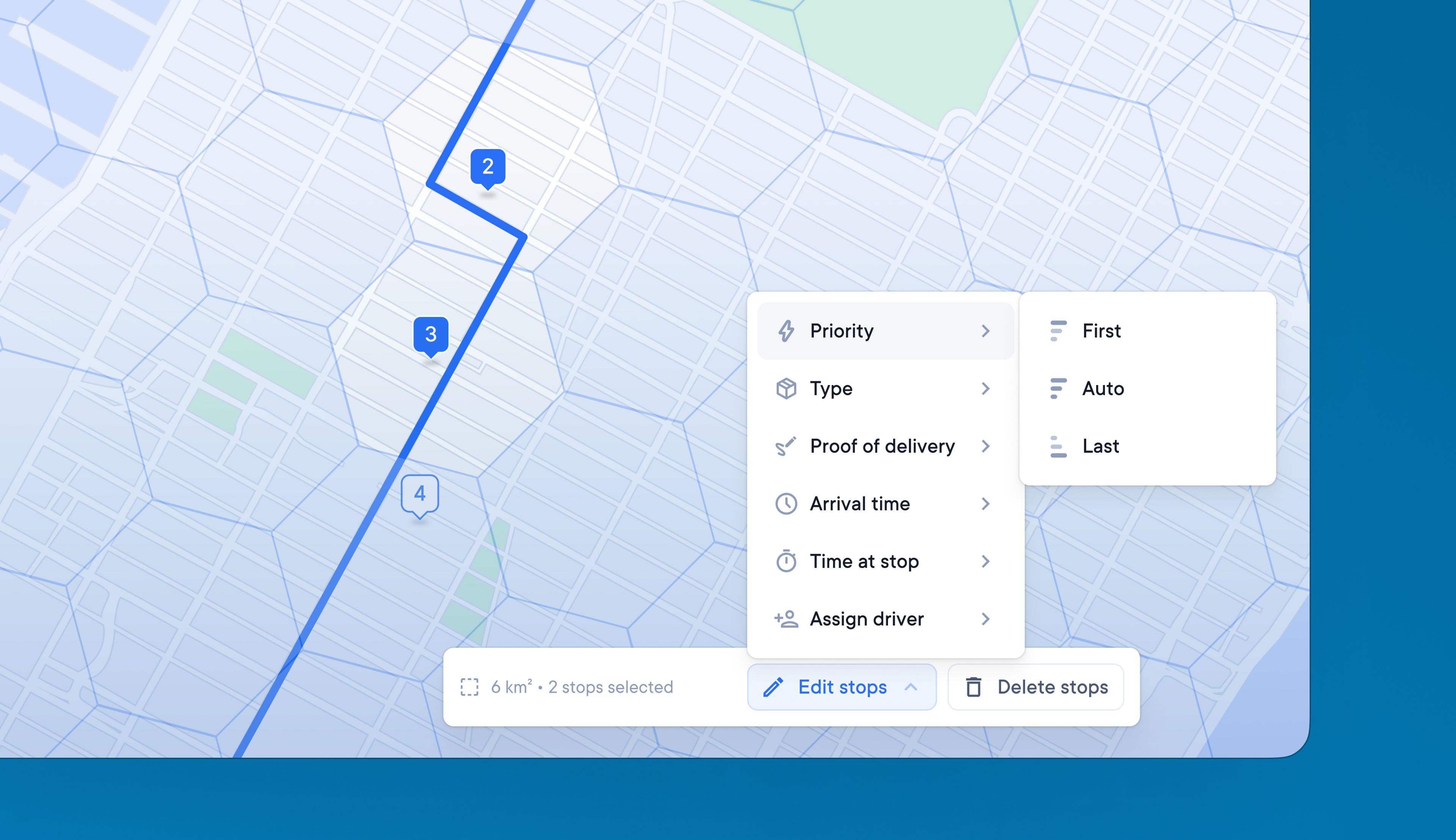
Dispatchers often need to make the same change to multiple stops on a route, but individually updating stops is inefficient and prone to human error.
Now dispatchers can save time managing stops with batch editing. It provides a quick and easy way to apply the same change to a group of stops.

Manually adding stops or batch-uploading route data using a spreadsheet can be time-consuming and inaccurate.
The latest version of the Spoke Dispatch API is two-way. This allows you to import and manage data using the API and subscribe to published event-based information.
Integrate your existing systems with the API to automate processes and speed up your delivery operations.
Go to Settings > Integrations to read the complete technical documentation and best practices.
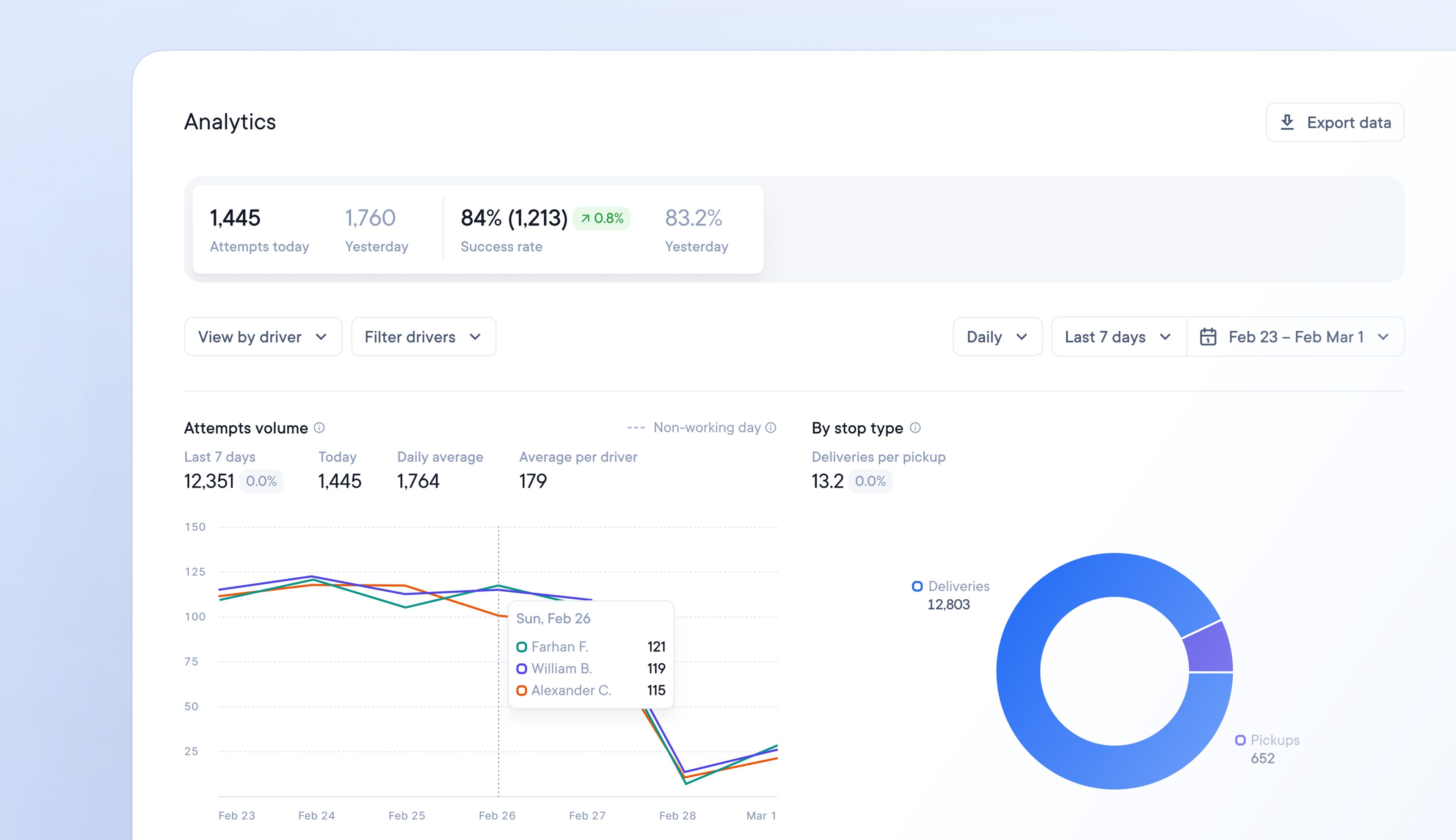
Identifying areas where delivery performance can be improved without access to the right data can be difficult.
Spoke Dispatch users can now access and run a range of delivery analytics reports to gain deeper insight into performance.
Go to Overview > At the top of the page, the daily analytics snapshot displays:
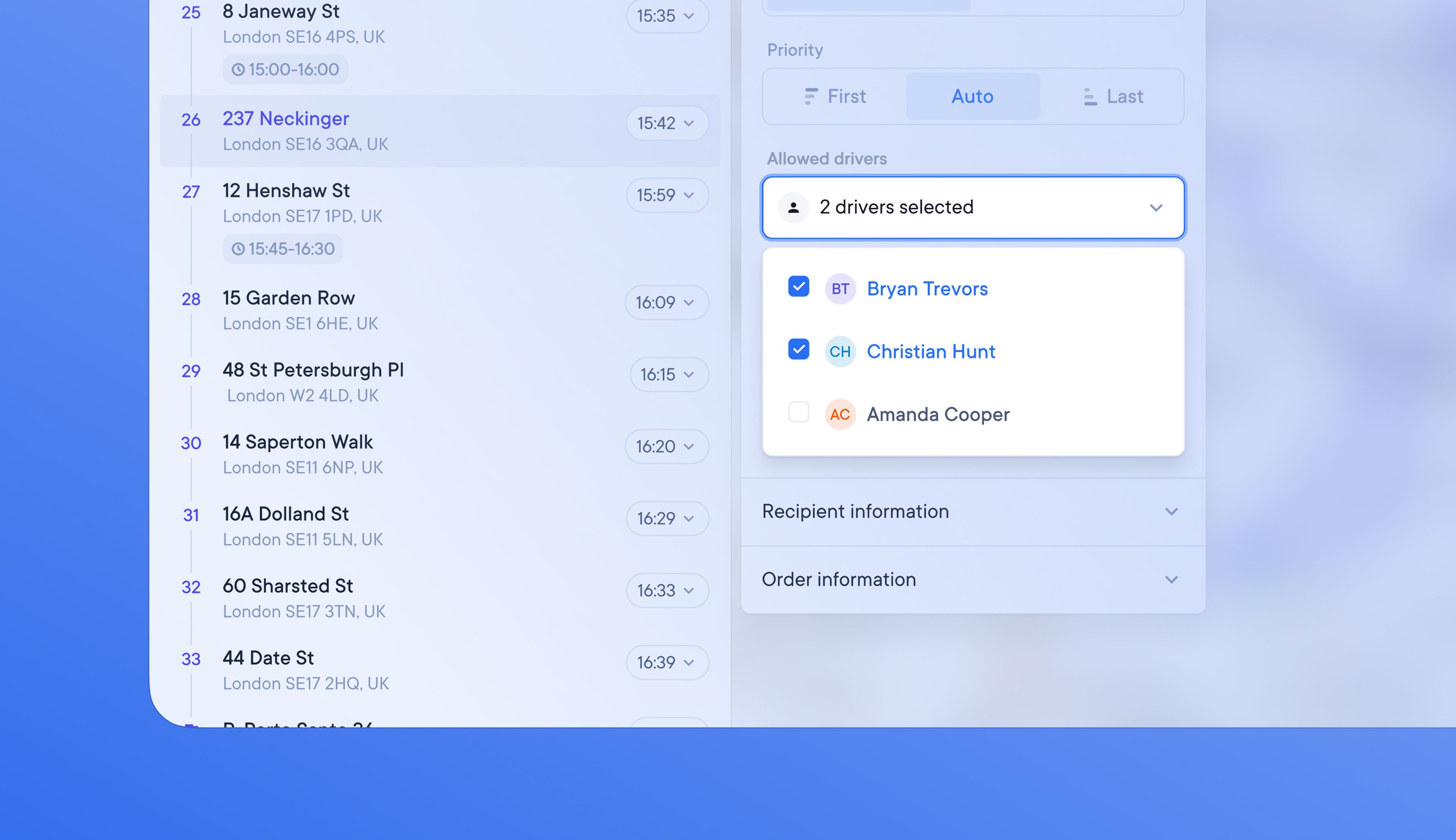
Some drivers may be more experienced than others or drive a more suitable vehicle, making them better equipped to carry out certain stops.
It’s now easy for dispatchers to only allow certain drivers to carry out specific stops.
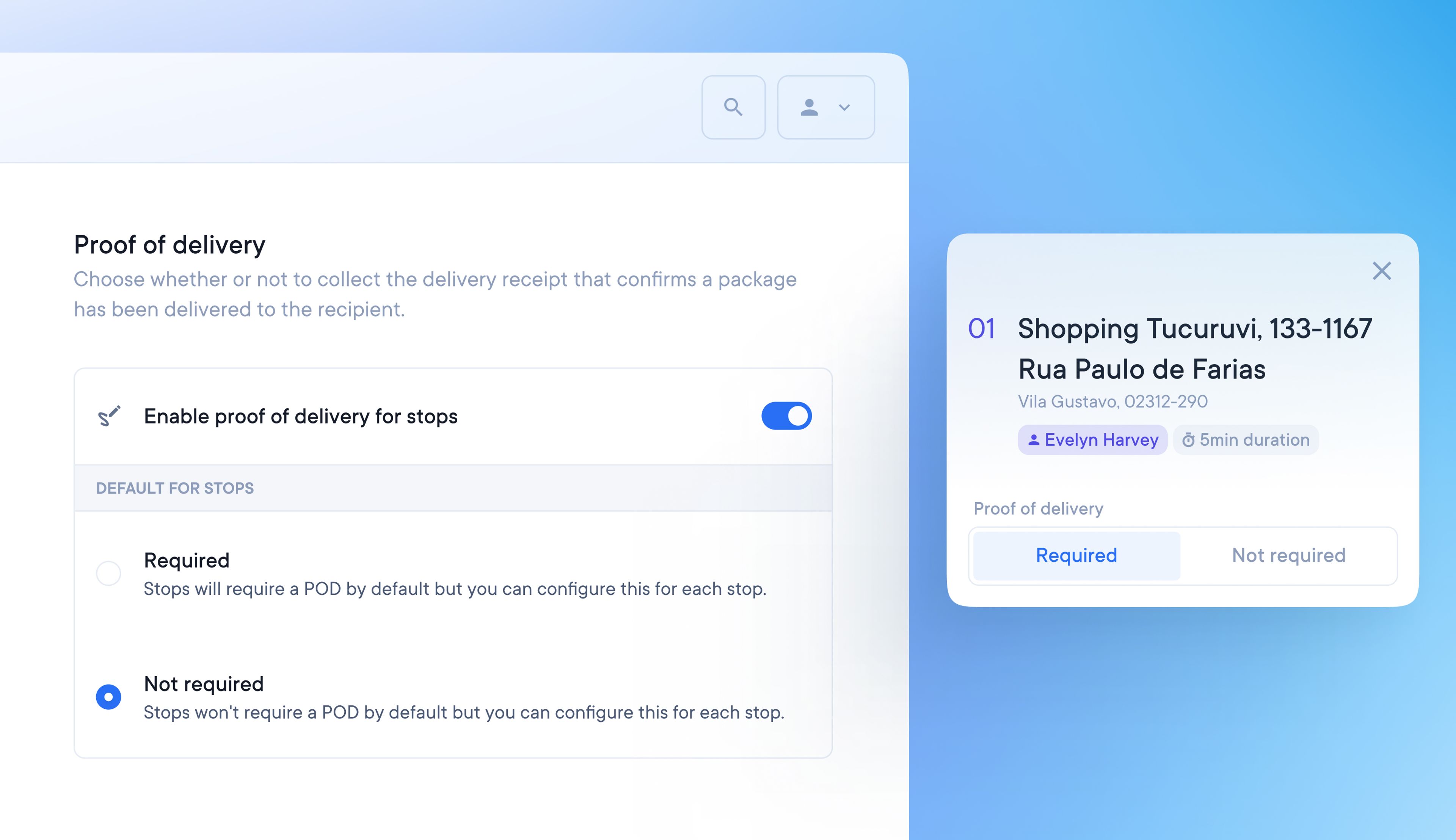
POD requirements can now be turned on or off for specific stops. Drivers can skip POD collection when it is not needed, which helps them to save valuable time across the duration of their route.
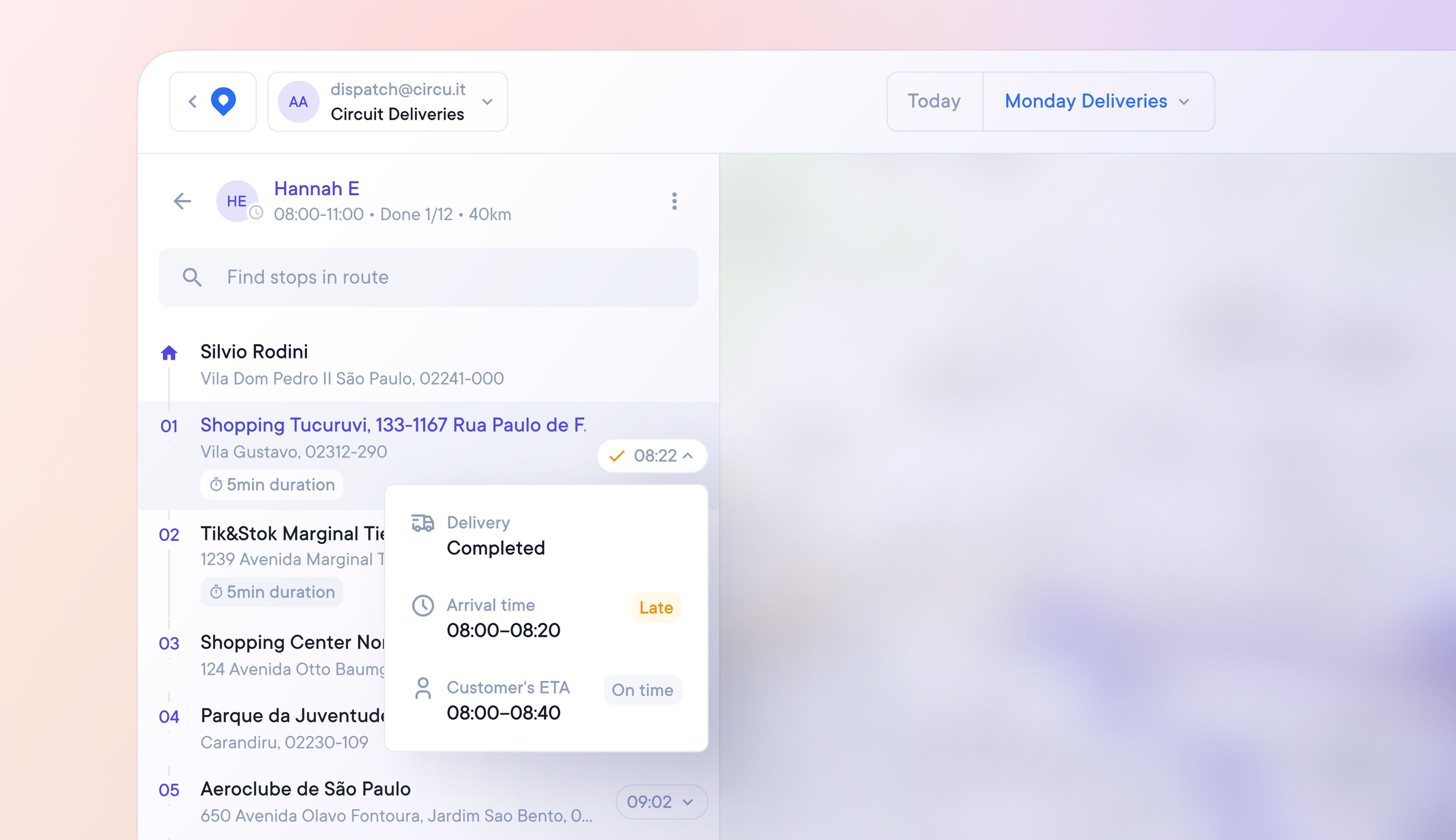
Dispatchers can now see the real-time status of stops on an active route and make live changes to increase the chances of successful delivery.
Dynamic stop status icons are live indicators of a stop’s delivery progress:
Hover over each icon for additional detail about:
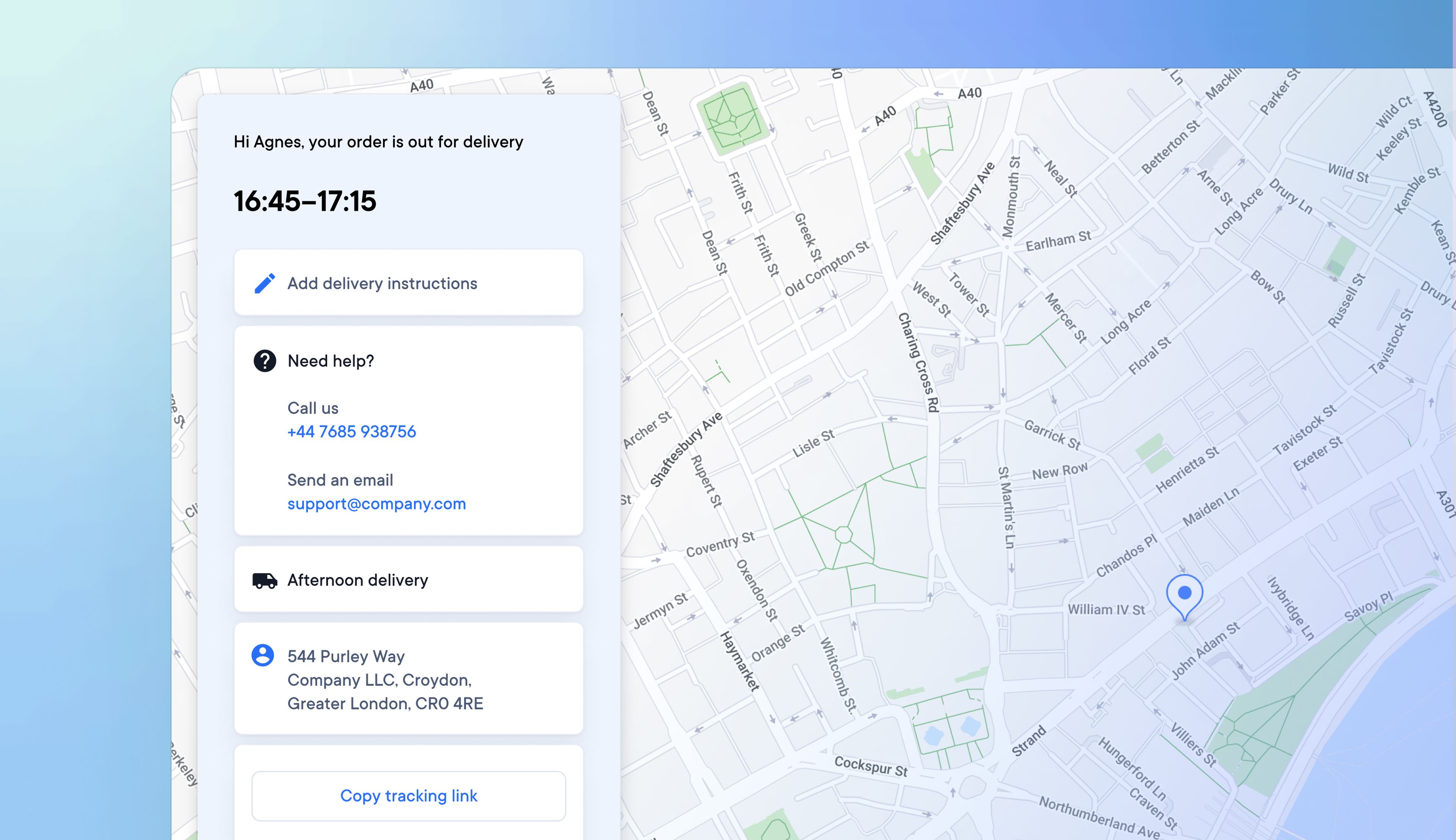
Dispatchers can now choose to add customer service contact details to the delivery information available to customers, providing a better delivery experience to customers who need help.
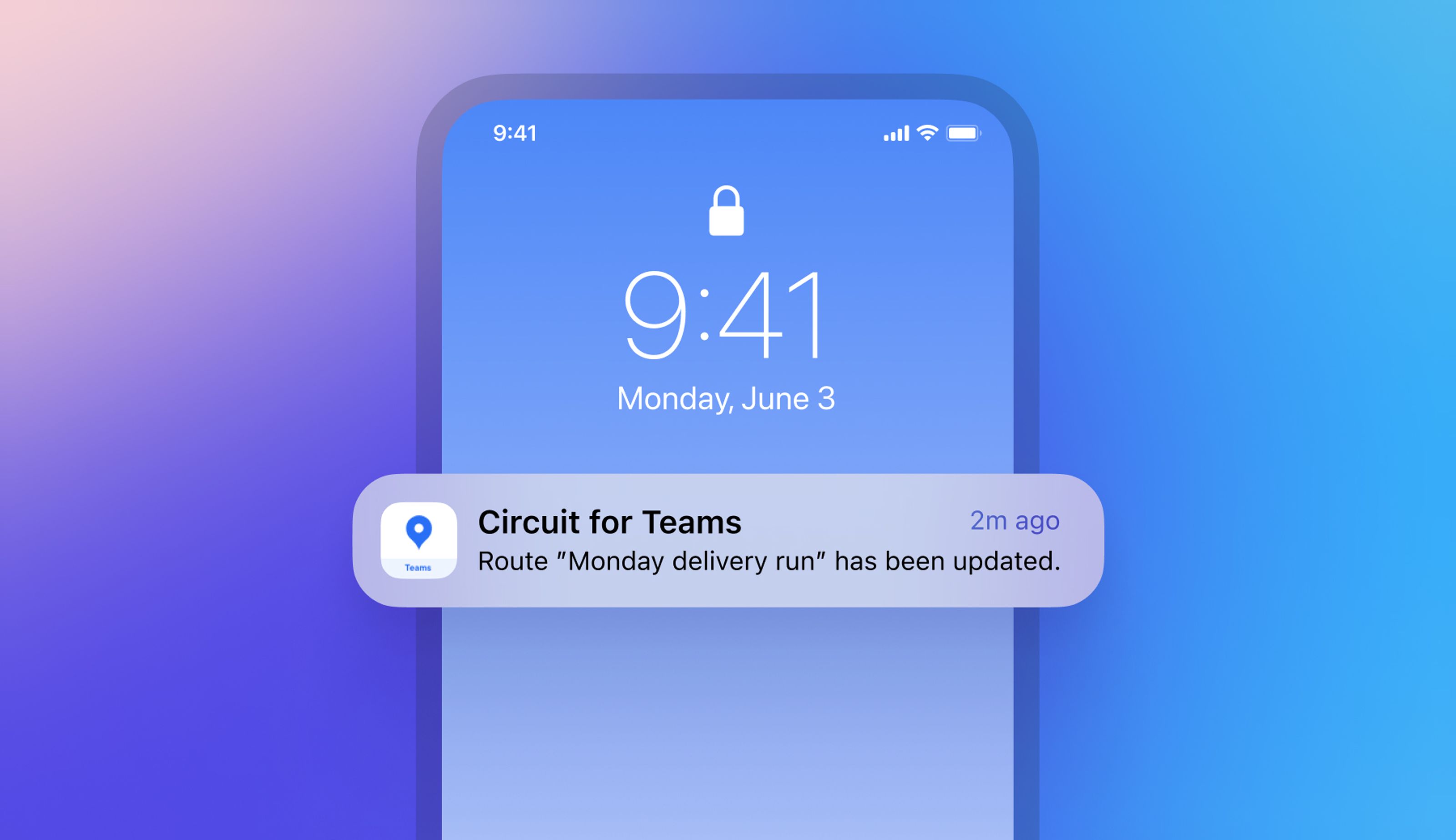
Dispatchers who need to modify routes that are already in progress can do so whilst automatically notifying drivers about the changes that have been made.
Same-day updates to routes are now easily carried out by Dispatchers and communicated instantly to drivers.
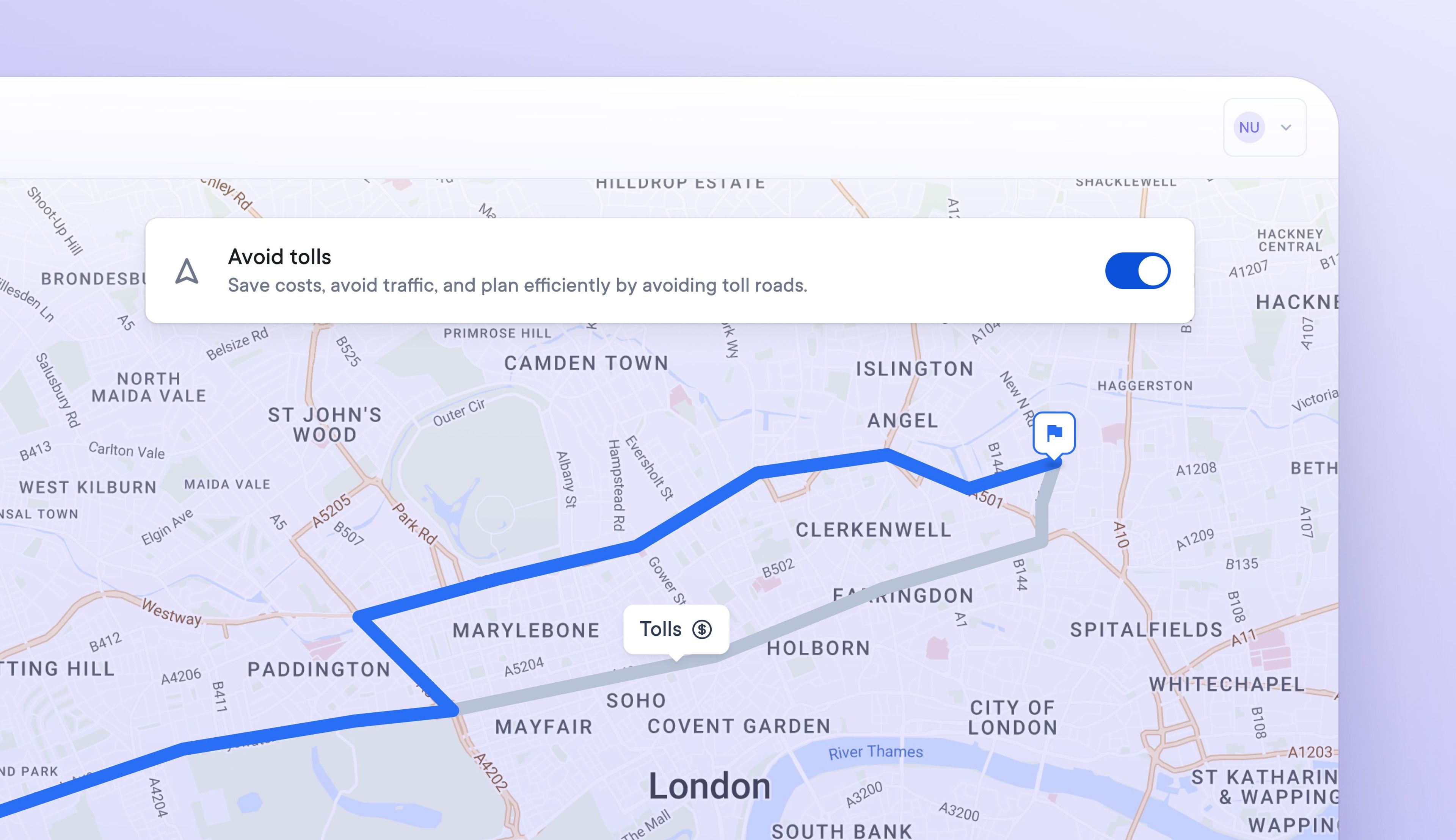
Toll roads can contribute to increased delivery costs, affecting profitability.
New account-wide settings now allow dispatchers and drivers to create delivery routes that automatically avoid toll roads.
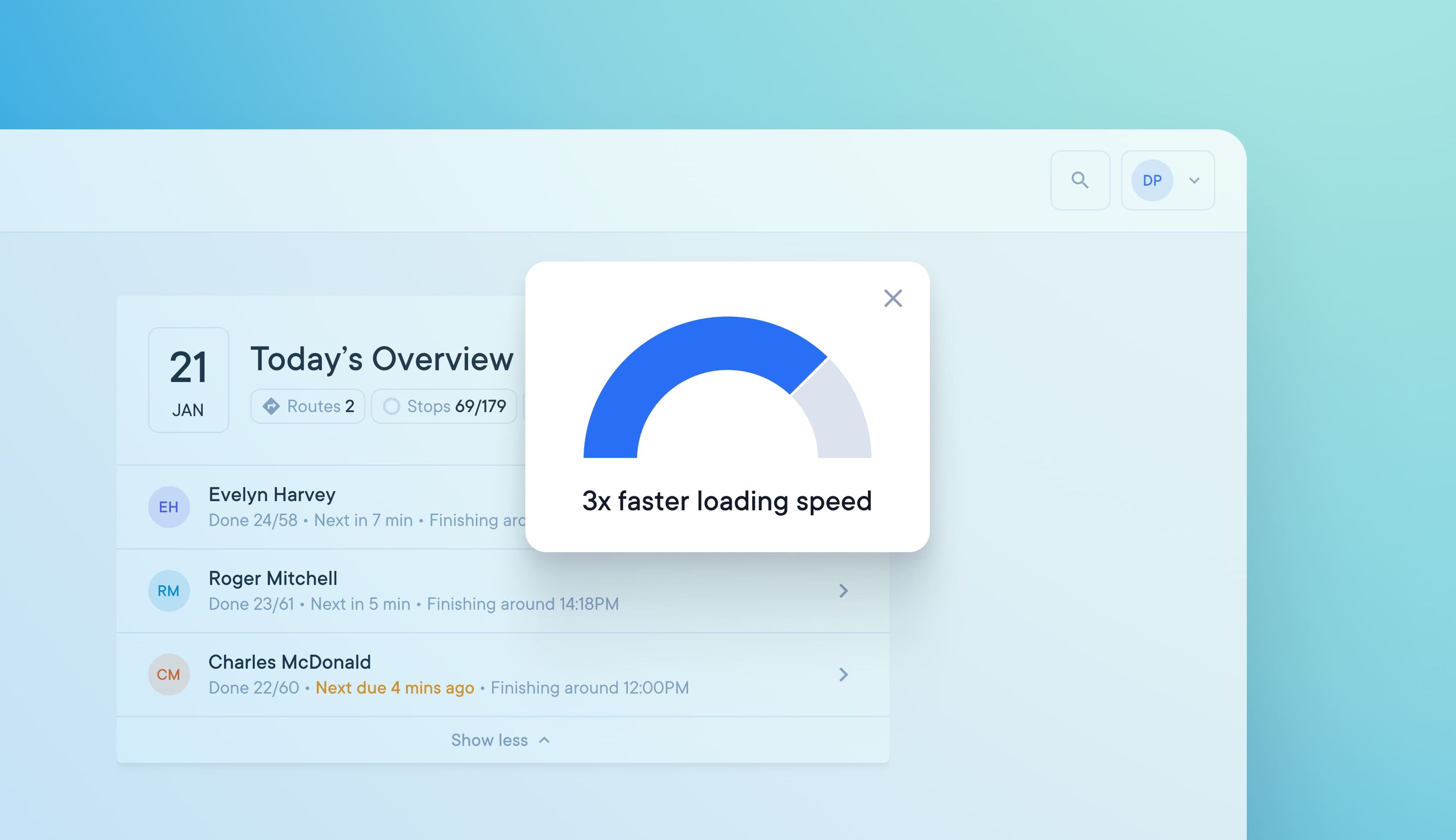
Previously, large teams with multiple drivers and routes may have experienced a slight lag as the Overview Dashboard page loaded.
Page loading performance has been improved so that large amounts of data can be quickly retrieved, processed, and displayed.
The Overview Dashboard page loads 50% faster for small teams and 3x faster for large ones, giving almost instant access to a view of daily delivery activity.